
Batch Photo Face Swap on Android
Select multiple supported photos, choose the source face for the batch, and process the images together instead of starting each one separately.
Batch time varies with the number and resolution of photos and your device performance.

One Workflow for Multiple Photos
Batch photo face swap is designed for a set of separate images. Select the photos you want to process, choose the source face, and keep the results together in one workflow.
How to Batch Face Swap Photos
Process a group of photos in three steps:
- 1
Select Multiple Photos
Choose the supported images you want to include in the batch.
- 2
Choose the Source Face
Select the face you want to apply through the batch workflow.
- 3
Process and Review
Start the batch, follow its progress, and review the completed images before saving or sharing.
Batch Photo Face Swap — Frequently Asked Questions
Answers about processing multiple photos with FacePika.
What is the difference between batch photo and multiple face swap?
Batch photo face swap processes a set of separate images. Multiple face swap works with several detected people inside one group photo.
How long does a batch take?
Processing time depends on the number of photos, their resolution, the visible faces, available storage, and your Android device.
Where does the face swap run?
The core face-swap processing runs on your device. FacePika still uses network services for templates, resources, updates, accounts, credits, payments, and analytics.
Explore Our AI Tools
Discover more powerful face swap features powered by FacePika's AI technology.

Photo Face Swap
Create face swaps in supported photos with automatic detection and alignment.
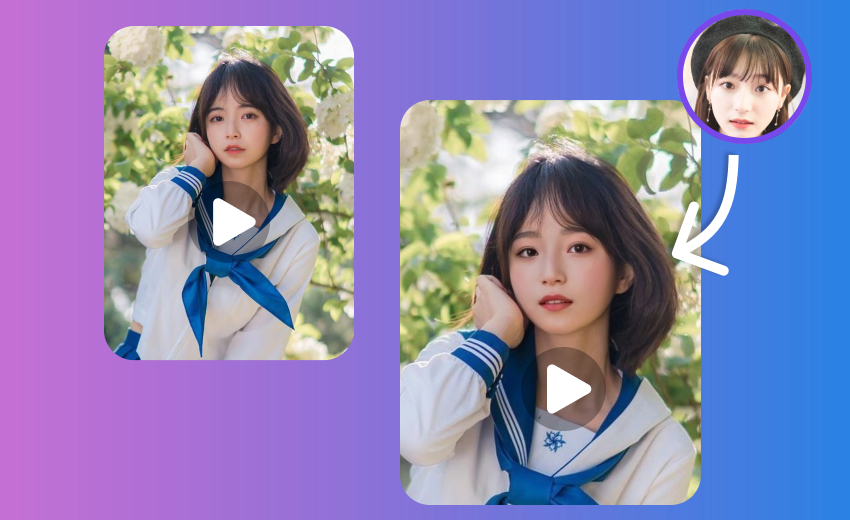
Video Face Swap App
Face swap videos on Android with on-device core processing and a progress preview.
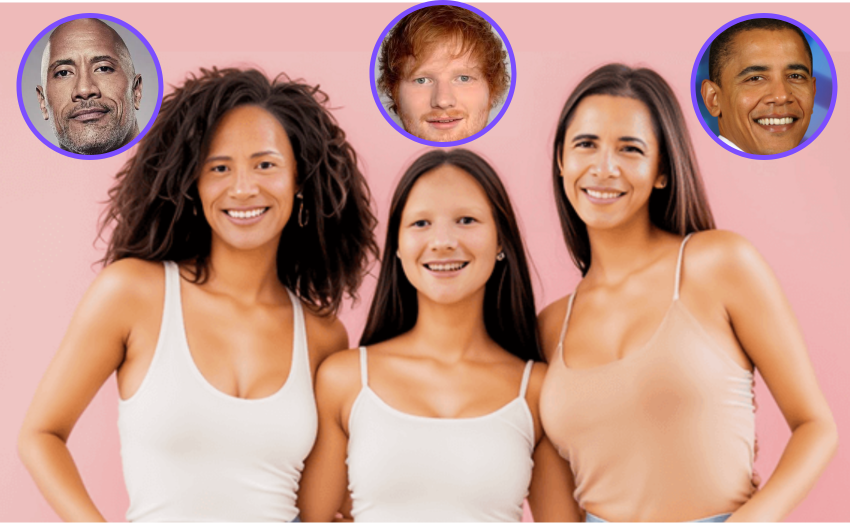
Multiple Face Swap
Swap multiple faces in group photos at once.

Movie Face Swap
Star in iconic movie scenes with celebrity face swap.

Meme Face Swap
Create hilarious memes with face swap in seconds.

Gender Face Swap
Swap your face into a character or style template on Android.
On-Device AI Face Swap
Learn how FacePika detects, aligns, and blends faces on your Android device.
Process Your Next Photo Batch
Download FacePika and create batch photo face swaps on Android.